

Suitability
Minimum Age: 25
Pet Friendly: Yes
Smoking Allowed: No
Automotive Features
Fresh Water Tank: 60 Gallons
Details
2010 (LOADED) Keystone Cougar
Sleeps 10
Fifth Wheel Length 36'’
Amenities
Electric Generator
Roof Air Conditioning
Refrigerator Microwave Range (Stove)
Kitchen Sink
Shower Toilet
CD Player
Fire Extinguisher
TV Bathroom Sink
Slide Out DVD PlayerAM/FM Radio
Hot & Cold Water Supply
Description
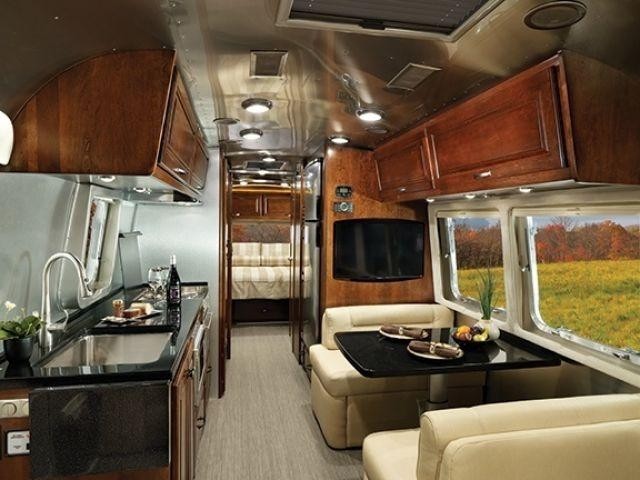
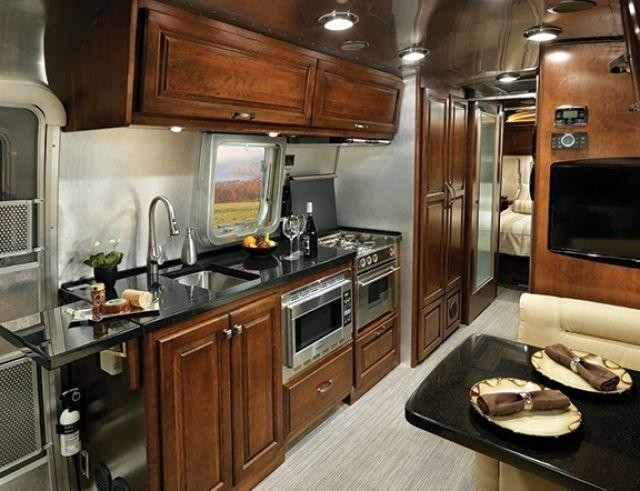
This is a 36' camper and can sleep 8 to 10 people. Has plenty of room with 3 slides, 2 bedrooms and 2 bathrooms.
You'll enjoy all the comforts at home like a full kitchen (refrigerator, microwave, oven, stove) TV, DVD/CD player, stereo and an electric awning for your outside enjoyment.
Have questions? That's normal, contact me.

-
Adding an Accordion to your web page.
To add an Accordion to your web page follow these steps.
1. While in the page editor view click the floating plus button in the top lefthand corner and select the Accordion from the drop down menu.
2. With the Accordion element selected click the attached pencil icon to edit the content.
3. Click the pencil icon to the right of the Accordion content you would like to edit.
4. Edit the Accordion as you see fit and click the button labeled "Update".
5. Select another Accordion field to edit or click the "Update" button in the Accordion Manager modal. Don't forget to save your changes. Formatting text in your Accordion content.
To format text in your Accordion content follow these steps.
1. In the Accordion Manager view click the pencil icon to the right of the Accordion content you would like to format.
2. Select the text in the content field you would like to format.
3. Select the type of formatting you would like to apply to the text.
4. Click the button labeled "Update".
5. Select another Accordion content field or click the button labeled "Update" in the Accordion Manager modal. Don't forget to save your page.Inserting images and video into your Accordion content.
To insert images and video into your Accordion content follow these steps.
1. Click the pencil icon to select the Accordion content you would like to edit.
2. Click in the content field and create a new line to see icons for inserting both images and videos.
3. Click the appropriate icon and select your images and videos from the file manager.
4. Click the button labeled "Update" to update your content.
5. Select another Accordion content section you would like to edit or click the button labeled "Update" in the Accordion Manager modal. Don't forget to save your page.